
How to easily count output lines in cmd.exe with the builtin FIND tool.

When working in a command line environment it is sometimes very useful to be able to count the lines of output from different tools. Many Unix/Linux operating systems contains the wc tool with many options and there is no real builtin alternative in Windows, however some of same capabilities exists native in the Windows Command Prompt (cmd.exe).
In this short post we will see how we can use the FIND utility for counting lines in cmd.exe. The find tool, somewhat similar to grep in Unix, has been around since MS-DOS and is easy to use since it is included by default in every Windows installation.
Assume for example that we have a Windows Server and want to see how may TCP sessions that is active for the moment. This could be studied with the netstat command and piped into FIND to grep the established sessions.
netstat -nao | find /i “estab”
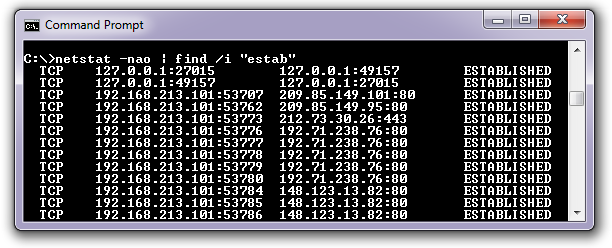
The output from this could quite overwhelming with hundreds of lines and we might only be interesting in the number of sessions. By just appending the switch /c to the command line we will get the number of open TCP sessions.
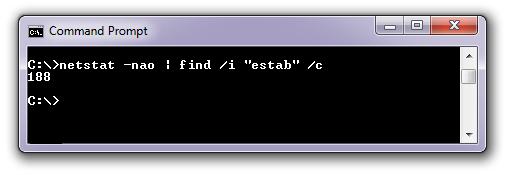
We will still use the filter (in this case look for the string “estab” to find only lines containing the ESTABLISHED state) but together with /c the tool will only display the number of matching lines.
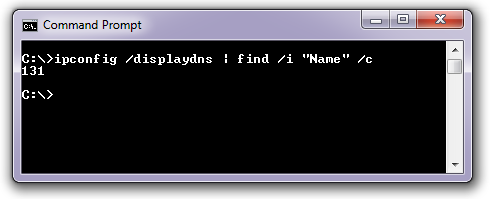
Another short example could be the notice the number to locally cached dns records, see output above.
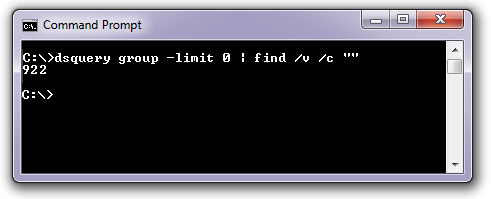
The /c option could also be used to count all lines that a commands leaves as output. For example we would like to know the number of groups in Active Directory. By using a pipe to FIND /v “” /c we want to see all lines that does not (/v) match the string “”, i.e. all lines and then count it. By using /v “” we will grep every non-blank line, which could be useful if the output strings are very different. If you have used the Unix tool wc this would be quite like wc -l.
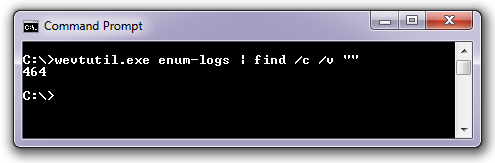
Another example with a command that displays a very large number of output line would be the Event Logger command line tool wevutil. If just wanting to know the number of different logs in modern Windows system we could pipe the names of several hundreds of log files into FIND /v “” /c.
A final example could be that we have a log file or similar with perhaps thousands of lines in total and we quickly want to know the amount of lines with certain key phrases.
TYPE C:\Windows\Schedlgu.txt | FIND /i “task failure” /c
It should be noted that the Unix tool wc has a number of Win32 ports available for free, but often it is most useful to know what could be accomplished from the builtin tools available on all Windows, even legacy versions.
Thank you. Thats really very useful.
Thanks! Very useful.
One question, how can i store the value that FIND returns in a variable??
I used the next command for count the number of images present in a Wim file:
dism /Get-WimInfo /wimfile:M:\sources\install.wim /English | FIND /C /I “Index”
But i need storage this number in a variable. So, i tried:
SET IN=` dism /Get-WimInfo /wimfile:M:\sources\install.wim /English | FIND /C /I “Index” `
but no luck. FIND answer: File not found: `
Any ideas?
Thanks!!!
Hello Pablo,
and thank you for your comment.
You could use the FOR command to capture the line count into a variable. An example:
dir C:\ | find /v /c “” > tmp1.txt
FOR /f %%a IN (tmp1.txt) DO SET number=%%a
ECHO %number%
So just replace the line before the > tmp1.txt with your dism command and try it. The line count will here be placed into a variable called “number”, but that could of course be changed to what you find suitable.
Regards, Rickard
You don’t need FOR to get file contents into a variable, SET already knows how to do that:
SET /P number=<tmp1.txt
In fact, SET /P can be used to ECHO text without a newline char at the end (so you can continue to write to the same line afterwards):
SET /P __DummyVar="And the winner is… "<NUL
:: Insert here the algorithm to determine the winner and then…
ECHO Peter Dinklage!
😛
… but what you _could_ use FOR /F to do is avoid writing the value to a file and just put it straight into the variable:
FOR /F %%g IN (‘dir /a-d /s /b C:\ ^| find /v /c “”’) DO SET numberoffiles=%%g
ECHO %numberoffiles%
Hello Donjoe,
thanks a lot for your comments. Always interesting with different tricks in classic CMD. 🙂
I tend to use FOR for the reason of sometimes reading multiple lines and doing some manipulations of them, however the variant with SET /P number=<tmp1.txt when only getting one line/item was good!
Best regards,
Rickard
Thanks!!!
Thats work for me.
Greetings!!!
Good stuff – Thanks so much – easy and very straight forward!
Invaluable, thank you!
I want to count all the lines after a command ran , however, I cannot get the integer value to echo. Could you please help?
Example: ping google.com | find /v /c “”
Result is: 11
Then I want to echo There are 11 lines.
Hello Quan,
thank you for your question. If you create a batch file to run the commands you could do it like this:
PING 192.168.100.77 | FIND /v /c “” > tmp1.txt
SET /P lines=<tmp1.txt
ECHO There are %lines% lines.
Hi Rickard,
Thank you for your help.
Not bad at all.
I use Linux for most of my tasks but this command can prove to be useful if I am not running cygwin on the Windows box lol.
Thanks, very good!
Thanks very helpful , what i was looking for i got exactly here.
your /v “” seems redundant and unnecessary, if your output doesn’t contain any blank lines.
“Blank Lines” in this instance is not an “empty line”. It just means a completely empty string. Since the newline is a string, then no line is truly empty or blank. It always gives a correct count of the file lines.
I just created a file with 50 empty lines, and the 51st line says “The 51st line”. The result:
> find /c /v “” 51_lines.txt
———- 51_LINES.TXT: 51
Great Post